

Click on any + below for more information.
Policy on Accepting External Lab Reports
Mandatory for Legal and Medical Compliance Standards
To ensure the highest standards of clinical safety and maintain regulatory compliance, Superior Genetix Health & Wellness, Inc. requires all externally sourced laboratory reports to meet specific diagnostic criteria. These requirements are non-negotiable and are designed to ensure the integrity of your medical evaluation and the safety of your treatment protocol.
1. Technical Submission Requirements
To be valid for clinical review, all laboratory reports must be submitted according to the following standards:
- Format: The report must be submitted as a single, multi-page PDF file.
- Integrity: Images, screenshots, or cropped photos of lab results will not be accepted. The document must be the official, unaltered final report from the performing laboratory.
2. Mandatory Documentation & Identification Data
Each report must contain comprehensive metadata to verify the origin and timing of the specimen. Your report must explicitly display:
- Patient & Provider Identity: Full Legal Name, Date of Birth/Age, Account Number, and the Ordering Physician’s information.
- Specimen Logistics: Specimen ID, Control ID (or Alternative Control Number), and the Fasting Status (Y/N).
- Temporal Validation: The specific Date and Time for the Collection, Receipt, and Reporting of the specimen.
- 30 Days or Less: The blood collection date must be within 30 days of completing your intake form.
3. Required Clinical Biomarkers
For a comprehensive clinical assessment and to meet the established Standard of Care, the following biomarkers must be present:
- Total Testosterone
- Estradiol (Sensitive)
- Complete Blood Count (CBC) with Differential and Platelets
- PSA (Prostate-Specific Antigen): Required annually for all male patients over the age of 40.
Clinical Note: In accordance with modern medical evidence and guidelines from the Mayo Clinic, testosterone therapy has not been shown to cause adverse progression in men with elevated PSA levels; however, baseline screening remains a mandatory safety protocol. MayoClinic / National Library of Medicine .Gov / National Library of Medicine .GovA Prescribing Physician reserves the right to request additional biomarkers if deemed medically necessary.
Verification and Next Steps
There are no exceptions to these requirements. To avoid delays in your treatment or the financial burden of re-testing, we strongly recommend you verify your lab order prior to your appointment.
Please be advised that non-compliant labs will NOT be reviewed.
Superior Genetix Policy On Accepting External Lab Reports
NOTICE: All Lab Reports Must Be Medically Compliant
30 Days or Less: The blood collection date cannot be more than 30 days old.
We can accept external lab work to begin treatment provided it meets the following criteria:
- The entire report must be contained to a single PDF file. (no screenshots).
- The report must include:
- Patient ID and details
- Specimen ID
- Date and Time (Collected, Received, and Reported) *Must display all 3
- Fasting status (Y/N)
- Date of Birth/Age
- Account Number
- Ordering Physician
- Control ID/Alternative Control Number
- Date Entered
- The blood work must indicate results for:
- Total Testosterone
- Estradiol
- Complete Blood Count (CBC) with Differential and Platelets
- PSA (A once-yearly prostate test is required to meet the standard of care guidelines in men over age 40. There is no medical evidence indicating that testosterone therapy is dangerous for men with an elevated PSA number)
References:
https://pmc.ncbi.nlm.nih.gov/articles/PMC12798415/#:~:text=CURRENT%20GUIDELINES,4%2C5%2C6%5D.
*If medically necessary, other biomarkers may be requested.
Please note that there are no exceptions to these requirements.
Since many of our patients use MyChart, there is actually a built-in way for you to generate a single, professional PDF of your records rather than saving every individual test result one by one.
The “Document Center” Method (Best for a Single PDF)
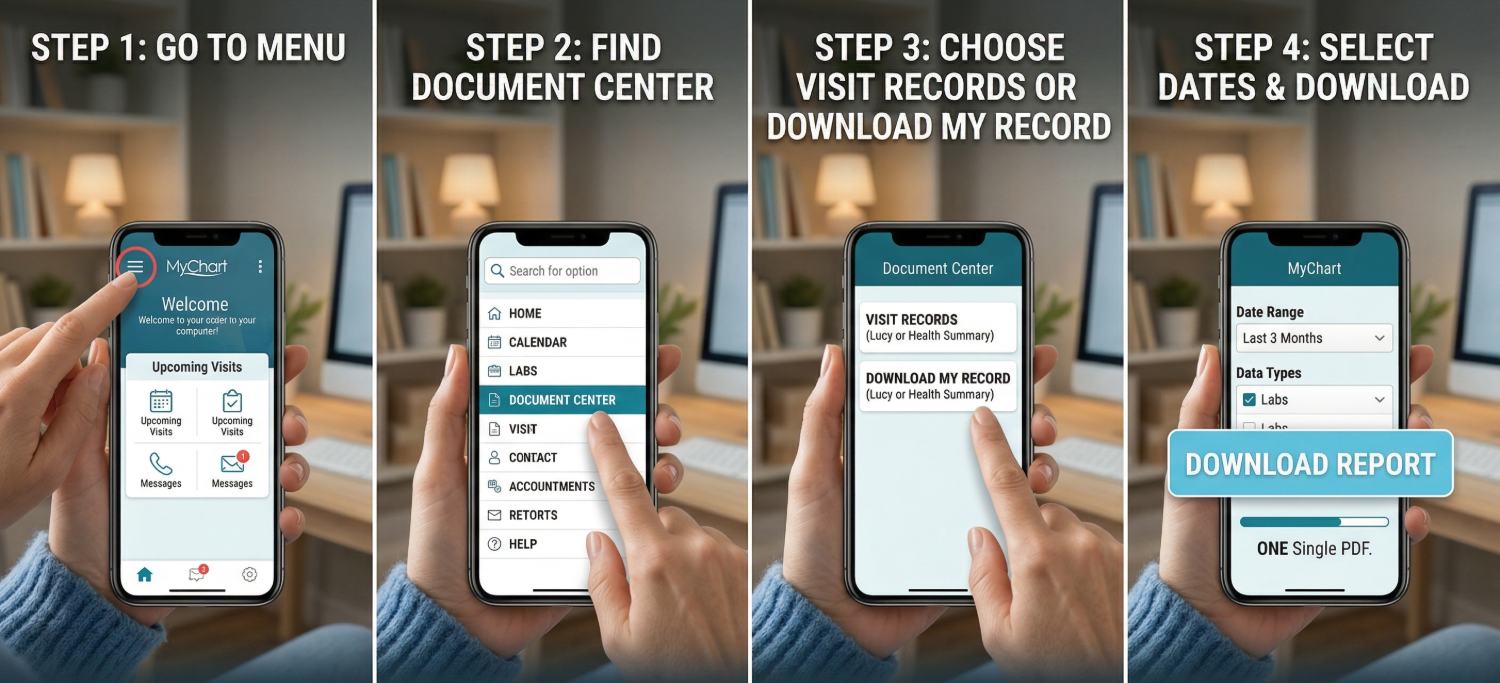
Patient Instructions:
- Log in to MyChart on a desktop/laptop (it’s much easier than the mobile app for this specific task).
- Go to the Menu and search for “Document Center.”
- Select “Visit Records” or “Download My Record.”
- Choose “Date Range” and select the period covering their recent labs.
- Click “Download.”
- MyChart will generate a single PDF (often called a “Health Summary” or “Lucy Summary”). This document includes all lab results, provider notes, and—crucially—the patient’s name and DOB on every page.
2. The “Share Everywhere” Method (The “Gold Standard”)
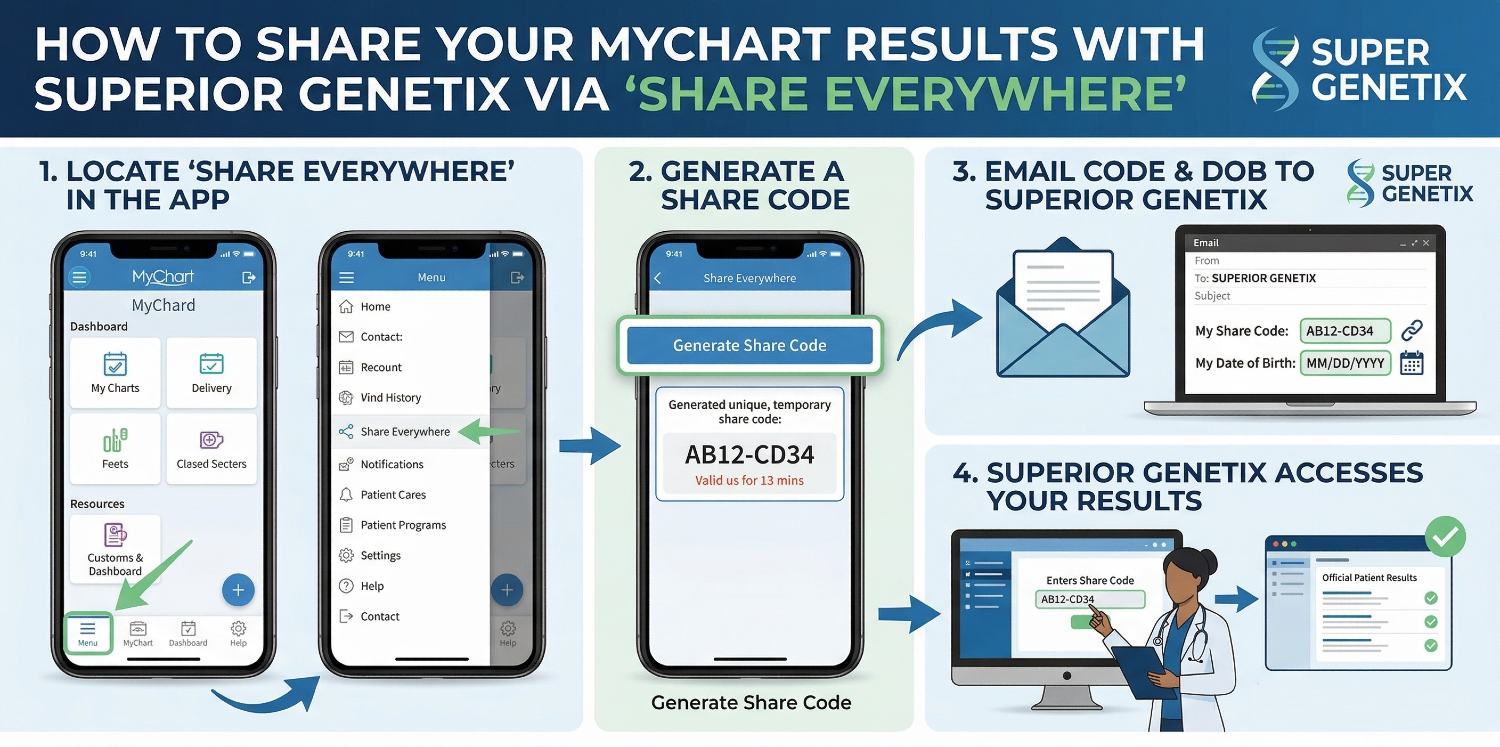 You can also use Epic’s Share Everywhere feature. This allows the patient to give their provider temporary, direct access to their “official” record.
- How it works: The patient goes to the “Share Everywhere” section in their MyChart and generates a Share Code.
- For your clinic: You go to shareeverywhere.epic.com, enter the code and the patient’s DOB
- The Benefit: You see the exact data the other doctor sees. You can then “Print to PDF” from your own browser to save a clean, verified copy directly into your internal patient files.
The athenaPatient app is the mobile version, but these steps work for the web portal as well.
Log In: Sign into the athenaPatient app or your provider’s web portal.
Navigate to Results: Tap the “Results” icon in the bottom navigation bar (on mobile) or click “Tests & Results” on the left-hand sidebar (on web).
Select the Lab: Click on the specific blood work or lab entry you want to view.
Download the PDF: * On Web: Look for a “Download” or “Print” button usually located at the top right of the result details.
On Mobile: Tap the “Share” icon (square with an up arrow) and select “Save to Files” to keep the PDF on your phone.
FollowMyHealth often categorizes labs under “Results,” but the official PDF is usually found in “Documents.”
Log In: Access your FollowMyHealth account.
Go to My Health: Click the “My Health” tab at the top of the screen.
Check “Results” vs. “Documents”:
For quick viewing: Select the “Results” sub-tab to see the numbers.
For the full report: Select the “Documents” sub-tab. Lab reports are often sent here as “Lab Letters” or “Clinical Documents.”
Download: Click the document icon to the right of the lab entry. Choose the “Export” or “Download” button to save the full clinical PDF.
HealtheLife is the portal used by Cerner/Oracle. It is very thorough but requires a few clicks to get the “Full” record.
Log In: Sign into the HealtheLife portal.
Open My Health: Select the “My Health” tab from the main menu.
Download Record: Look for the “Download Record” option (often found under a “Health Record” or “Results” summary).
Select “Partial” or “Entire”: * If you just want the recent labs, choose “Partial Record” and select the date of your blood work.
If you want everything, select “Entire Record.”
Save as PDF: The system will generate a package. Ensure you select the PDF format (it may also offer an XML file, which you don’t need) and click Download.
NextGen recently updated to the “PXP” (Patient Experience) platform, which is very mobile-friendly.
Log In: Sign into your NextGen Patient Portal.
Access Health Record: Click on the “Health Record” or “Chart” section.
Find Results: Go to the “Results” or “Laboratory” tab.
Find the “Download” Button: * NextGen usually has a specific “Download” or “Send” button at the top of the Results list.
Select the checkbox for the specific labs you want to retrieve.
Generate PDF: Click “Download” and choose “Health Record (PDF)” to save the formatted report to your device.
To provide your report in the compliant format, it must be uploaded as a single file.
Use a free online tool to merge separate pages into a single PDF lab report. Some available options include:
– https://files-editor.com/en/upload/merge